Advanced usage examples
In this section of the docs you will find some advanced usage examples of modal-form-plugin
Nesting form calls
Modifying frontmatter with a form
If you want to modify the content of a notes frontmatter with one of your existing forms, put the following snippet in a templater template, substituting the name of your form:
<%*
const modalForm = app.plugins.plugins.modalforms.api;
  const run = async (frontmatter) => {
    const result = await modalForm.openForm('frontmatter', {
      values: { ...frontmatter },
    });
    return result.getData();
  };
  //first we get the data from the form
  const data = await run(tp.frontmatter);
 // Then we update the frontmatter with the new data
  app.fileManager.processFrontMatter(
    tp.config.target_file,
    frontmatter => {
      Object.assign(frontmatter, data);
    },
  );
%>
Please be aware that this is not atomic, so if if something edits the frontmatter while you are editing it within the form, the form values will not reflect this change and you may be overwriting some changes. Although this is unlikely to happen, it is better to be aware of it.
The values the form understand and that are present in the frontmatter, will be populated with the values on the frontmatter. Then, when you submit the form, the new values will overwrite the old ones, leaving the rest untouched.
!!! tip If you want the form definition to live inside the template itself instead of in the plugin settings, you can use the Builder API to create fully self-contained forms in Templater templates.
Making calling forms more convenient
If you are using templater, you can make calling forms more convenient by using the following snippet:
const modalForm = app.plugins.plugins.modalforms.api;
module.exports = (formName, options) => modalForm.openForm(formName, options);
If you save this snippet as openForm.js in your templater snippets folder, then you can then call it like this from templater:
<%*
const result = await tp.user.openForm('example-form', { values: { size: 'large' }});
%>
Exclude subfolders when selecting notes from a folder
Instead of using the note type or the note source (in case of multi-select) in your form, which doesn't support exclusions yet, we will use dataview (either type or as a multi-select source) to get the notes we want.
Then use the following query to exclude subfolders:
dv.pages('"Data" AND -"Data/Nested"').file.name;
Here Data is the folder we want to get notes from and Data/Nested is the subfolder we want to exclude.
Please keep in mind that dataview is very sensitive to spaces and quotes. Removing the nested " will not work, or adding a space after the - will not work either.
Adding additional items to a Dataview Input
The dataview field it is just some expression that gets evaluated, and the values are what are shown in the input form.
It can be a single dataview command, or it can be more things, like concatenation of results like this:
['1','2', ...dv.pages('#programming').title]
Which will look like this in the form:
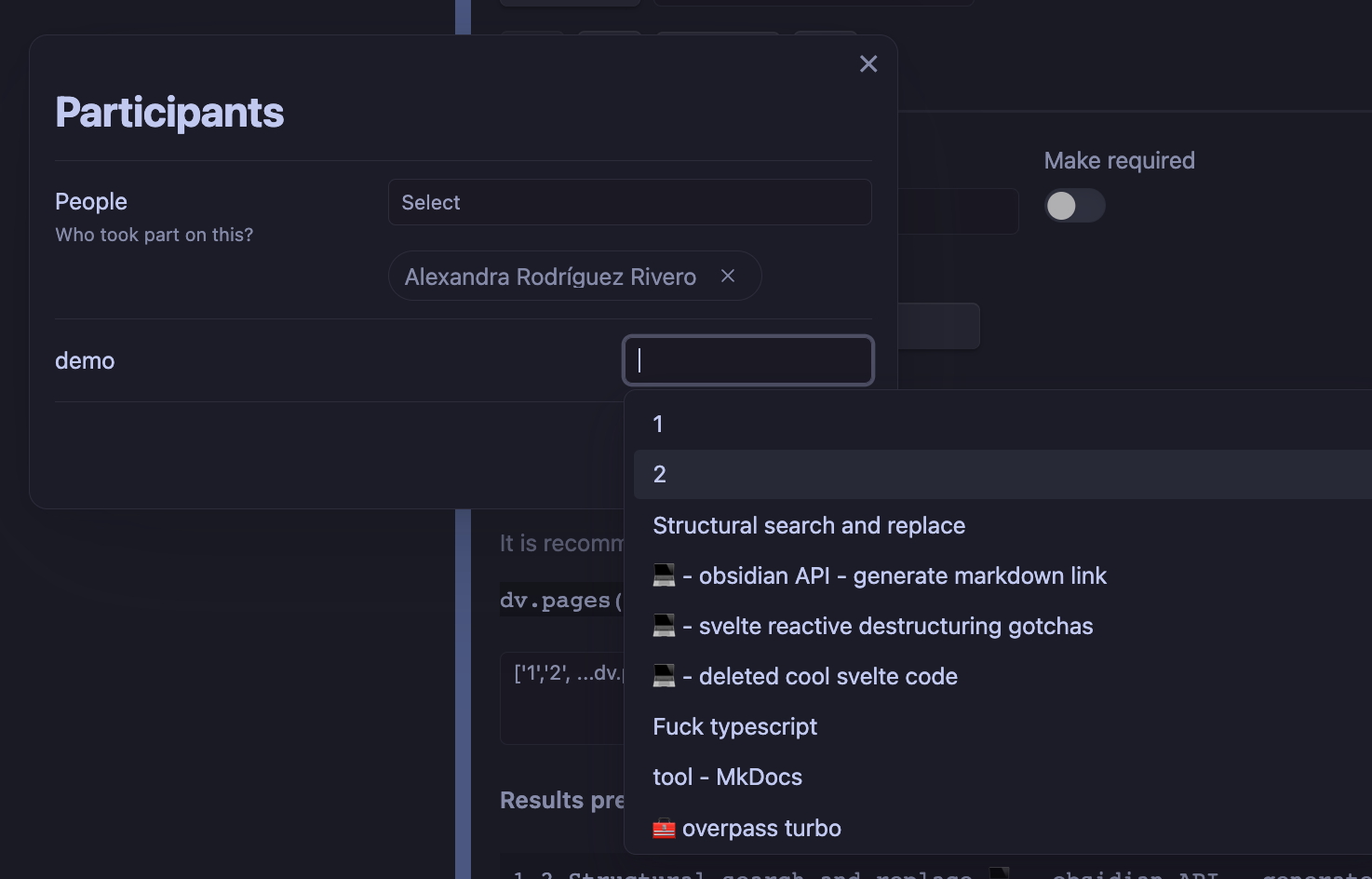
You can take advantage of the preview to experiment a bit with what you will get in the input

Styling specific fields with CSS
Every rendered field exposes its form-field name so you can target it from a CSS snippet.
The wrapper element around each field gets a data-field-name attribute, and basic
inputs (text, number, textarea, select, ...) also get a matching name attribute.
Given a field called rating, both of these selectors will work in an Obsidian CSS snippet:
/* Target the whole row (label + input) */
.modal-form .setting-item[data-field-name="rating"] {
    background: var(--background-secondary);
}

/* Target only the input element */
.modal-form input[name="rating"] {
    font-weight: bold;
}
This is useful, for example, to render a slider as a star-rating component, or to highlight a specific field without affecting the rest of the form.